


Gabung – Digital Marketing Agency Elementor Template Kit
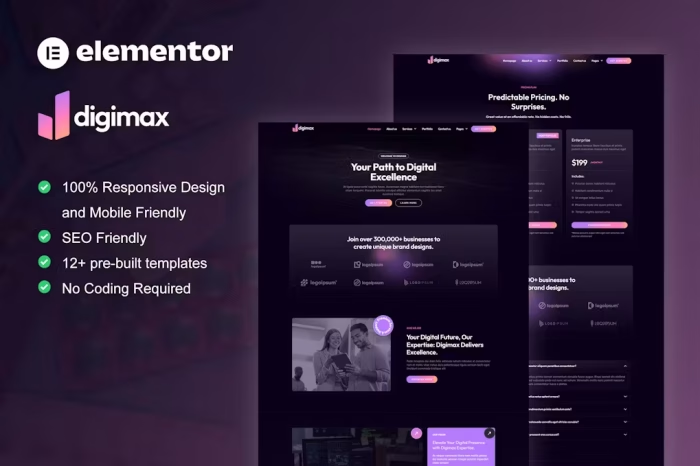
Gabung is a comprehensive Elementor Template Kit designed for Digital Marketing Agency websites. This kit includes a selection of templates for design agencies, digital marketing, website development, social marketing, SEO services, graphic design, and more. With a modern, unique design and a 100% fully responsive layout, Gabung is easy to install and customize using Elementor, eliminating the need for coding. Save time and create a professional website effortlessly.
Features:
- Compatible with WordPress – Elementor
- No Elementor Pro Required: Uses free plugins.
- True No-Code Customization: Drag-and-drop functionality.
- Fully Responsive & Mobile-Friendly
- Modern & Professional Design
- 14+ Pre-Built Templates
- Global Theme Kit Style: Customize fonts and colors in one place.
Included Templates:
- Homepage
- About Us
- Services
- Pricing
- Project
- Project Detail
- Team
- FAQ
- Testimonial
- Blog
- 404 Page
- Contact
- Header
- Footer
Required Plugins:
- Elementor
- ElementsKit
- RomethemeForm
- RomethemeKit
- Skyboot Icons
How to Use Template Kits:
Note: This is not a WordPress theme. Template kits contain design data for Elementor only and are installed using the Envato Elements plugin for WordPress or directly through Elementor.
- Install and Activate Plugins:
- Install and activate the “Envato Elements” plugin from Plugins > Add New in WordPress.
- Upload Template Kit:
- Go to Elements > Installed Kits and click the Upload Template Kit button. Alternatively, connect your Elements subscription and import under Elements > Template Kits.
- Install Requirements:
- Check for the orange banner at the top and click Install Requirements to load any plugins the kit uses.
- Import Global Kit Styles:
- Click import on the Global Kit Styles first.
- Import Templates:
- Click Import on one template at a time. These templates are stored in Elementor under Templates > Saved Templates.
- Create Pages:
- Go to Pages and create a new page, then click Edit with Elementor.
- Click the gear icon at the lower-left of the builder to view page settings, choose Elementor Full Width, and hide the page title.
- Click the gray folder icon to access My Templates tab and import the page you’d like to customize.
- Customize Headers and Footers (if using Elementor Pro):
- Headers and footers may be customized under Theme Builder.
Setup Global Header and Footer in RomethemeKit:
- Import Header and Footer Blocks:
- Import the header and footer blocks from the Template Kit.
- Setup in RomethemeKit:
- Go to “RomethemeKit” > Theme Builder and click Add New.
- Title the header, choose the option Type, and toggle Activation to On under General options.
- Select Entire Site under Condition options and click Save Changes.
- Edit with Elementor, access the My Templates tab, and select the Header block to import.
- Customize the header as needed.
- Repeat for the Footer.
Setup Forms in RomethemeForm:
- Import Form Blocks:
- Import the form blocks from the Template Kit.
- Create and Customize Forms:
- Go to “RomethemeForm” > Forms and click Add New.
- Enter a Form Name and click Save and Edit.
- Access the My Templates tab, select the form block, and click Insert, then Save & Exit.
- Edit your template (e.g., Contact Page), select the RomethemeForm widget, and choose the desired form to display.


There are no reviews yet.